
Enrichment allows you to append specific fields to your customer file; for example, income, age, length of residence, and many others. This article is for the advanced user who is experienced with Experian attributes and is looking to customize the enrichment process with attributes beyond those included in the pre-set bundles. Step 6 provides more detail for how to utilize the Advanced Attribute feature.
- Click the Enrich button on the main page
- Click the green "+New Enrichment" button to upload a new file.
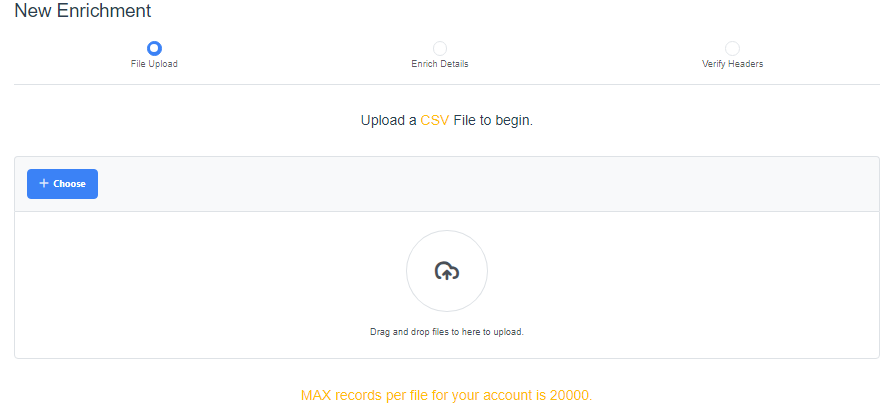
- Click the blue "+Choose" button or drag and drop the CSV file to upload, then click the blue "Next" button. (Our platform currently accepts only CSV files.)
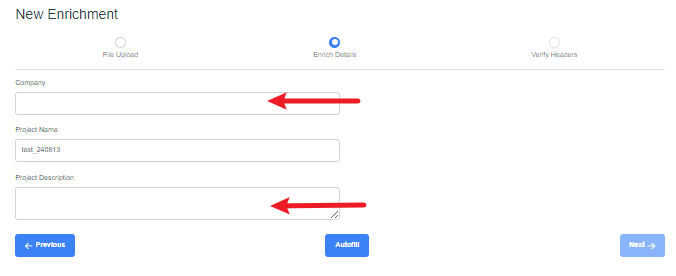
- Enrich Details: when the file has been uploaded, enter Company Name and Project Description, then click "Next".
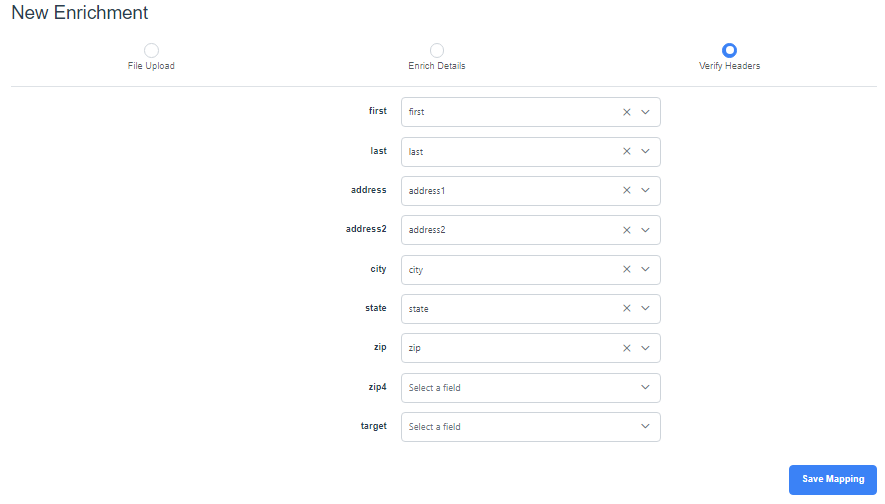
- Verify Headers: if not already populated, select the headers of your data, then click the blue "Save Mapping" button. The minimal requirements are: address 1, address 2, and zip. Having first and last names will provide optimal enrichment.
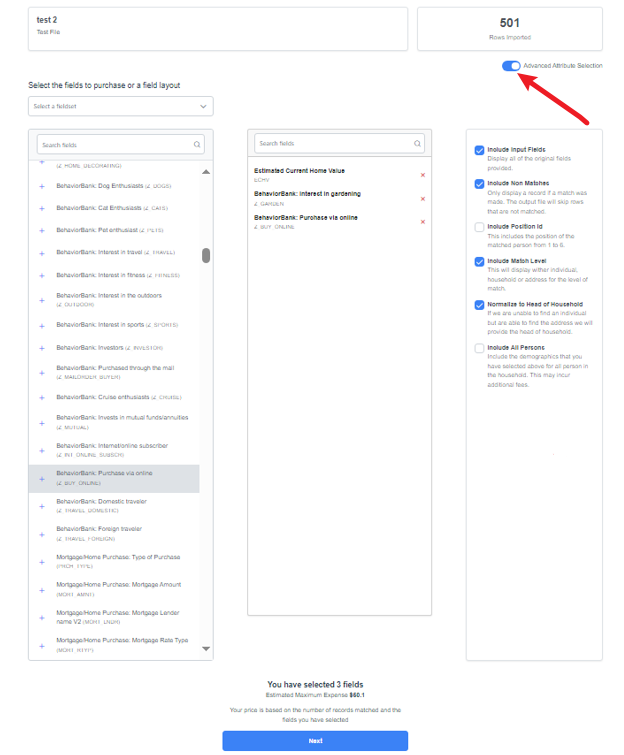
- To enrich your data with attributes beyond what is available in the pre-set bundles, you can choose to toggle on the "Advanced Attribute Selection" button (positioned in the upper right of the screen, below the file quantity). This option is for the user who is familiar with the Experian database and wants specific information that may not be included in the ADN bundled options.
- To assist with field selection from ~1000 choices, the user can do a keyword search to find the desired attributes. Make selections from the left panel by clicking on the blue "+" which will be visible in the middle panel of the screen.
When selection(s) are complete, click the blue "Next" button at the bottom of the page.
As an example below, three fields have been selected.
For repetitive projects utilizing the same fields, a Field Layout can be created to eliminate the need to individually select the same attributes each time. This must be created prior to utilizing the Enrichment feature. To do this, click the Data Dictionary box on the main screen (outside of Enrichment) and click the green "+New Field Layout" button.
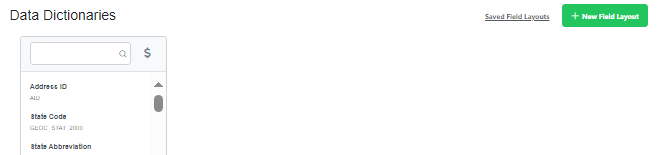
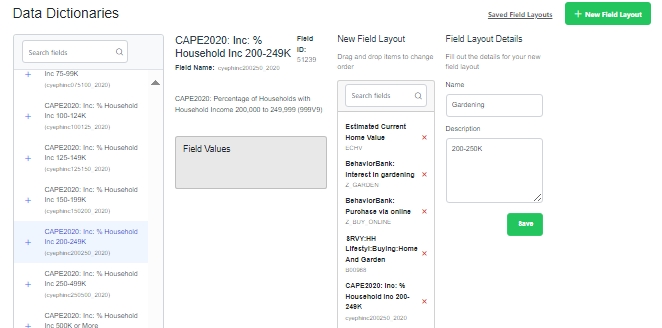
Select the desired attributes by clicking the blue "+" sign for each.
When all fields have been selected, enter a Name and Description for the Field Layout Details. and click the green "Save" button.
The "Estimated Maximum Expense" (noted near the bottom of the page) will be updated according to the number of fields selected.
- To assist with field selection from ~1000 choices, the user can do a keyword search to find the desired attributes. Make selections from the left panel by clicking on the blue "+" which will be visible in the middle panel of the screen.
- The enrichment process will start; watch for a blue bar showing the progress and a green pop-up in the lower right corner to indicate if it has been successful.
- The next page provides access to the enrichment results; click on the gray "Download" button to receive the Excel reports.
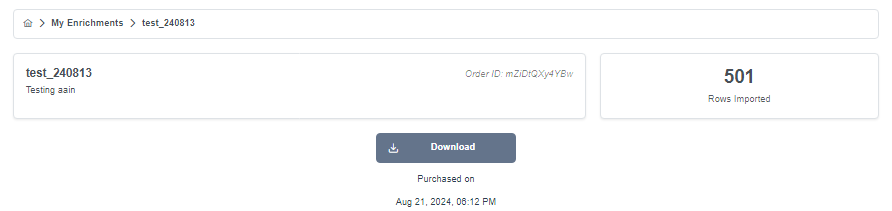 Please note: Your enriched file is available for downloading within a seven day period from the date of being generated.
 - Check your Downloads for the reports. Four reports will appear:
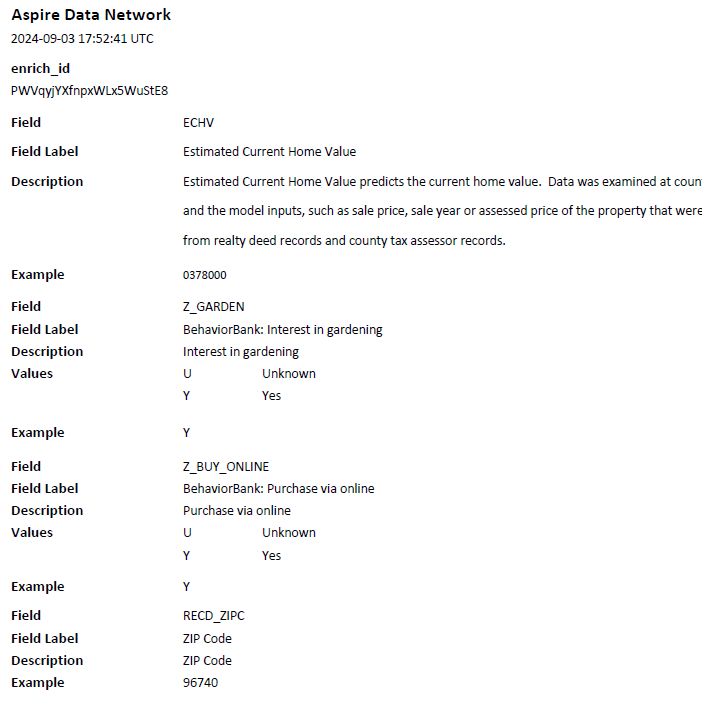
- The Data Dictionary report provides definitions, breakdowns and rankings of the attributes selected.
- The Enrichment report shows all of the individual records and the selected attributes known about each person/address.

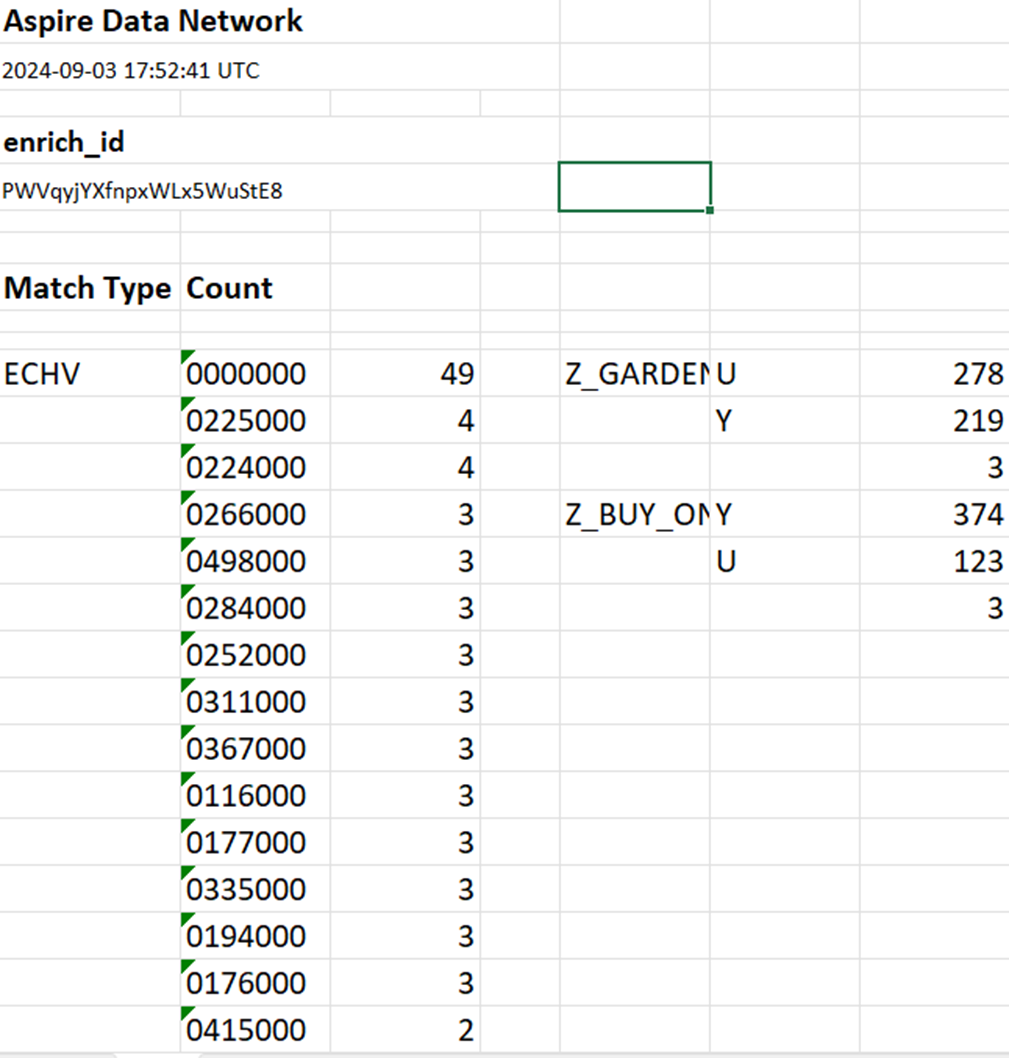
- The Field Summary report provides a summary of the selected attribute matches and record count for each. Scroll down within your report to see all of the Summaries.
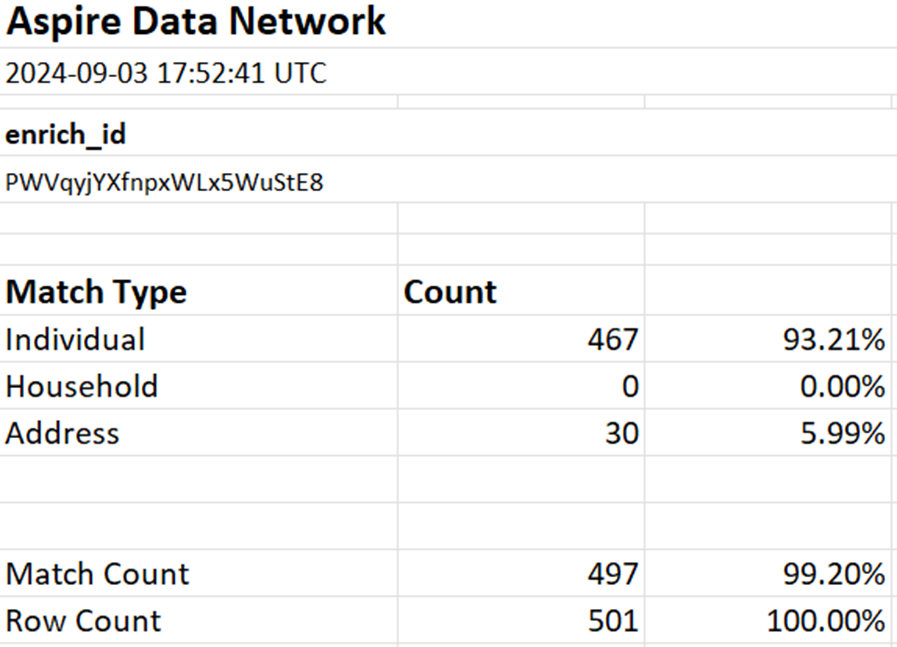
- The Match Summary report provides a summary of the number of individual, household or address matches to the Experian database. In the example below, 467 records were matched at the individual level, and 30 records were matched at the address level.
- The Data Dictionary report provides definitions, breakdowns and rankings of the attributes selected.