
Audience Insights helps detail the demographics of your customers.
You can select specific demographics or choose from various pre-bundled groups of data elements.
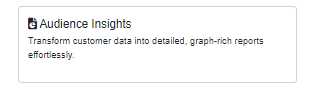
- Click the Audience Insights button on the main page.
- Click the green "+New Report" button to upload a new file.
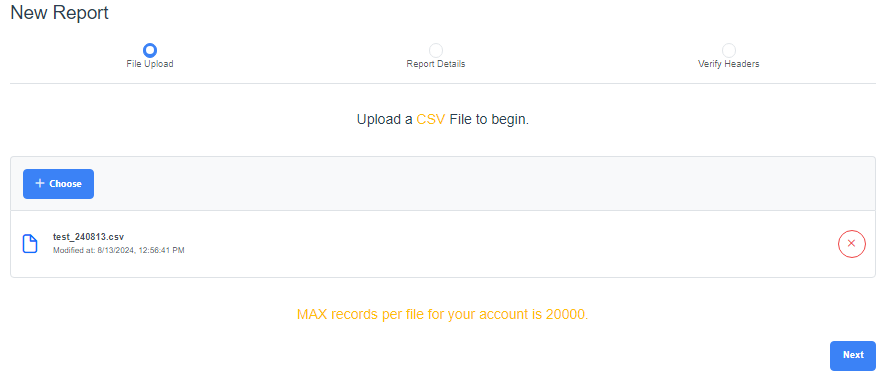
- Click the blue "+Choose" button or drag and drop the CSV file to upload, then click the blue "Next" button. At this time, the platform only accepts CSV files.
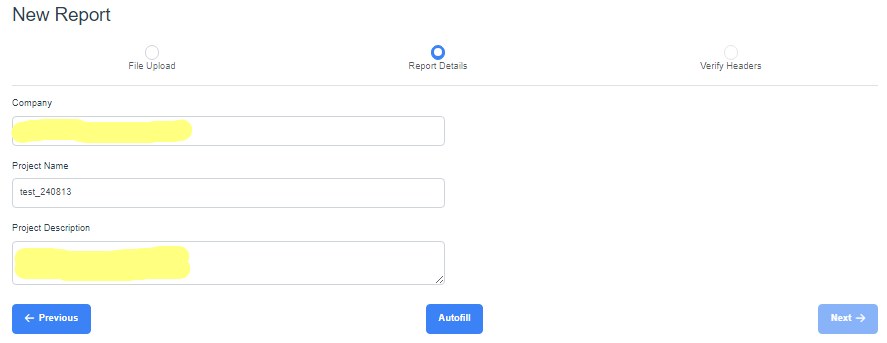
- Report Details: when the file has been uploaded, enter Company and Project Description, then click "Next".
- Verify Headers: if not already populated, select the headers of your data, then click the blue "Save Mapping" button.
The minimal requirements are address 1, address 2 and zip. First and Last names must also be included in order to enrich data at the individual level.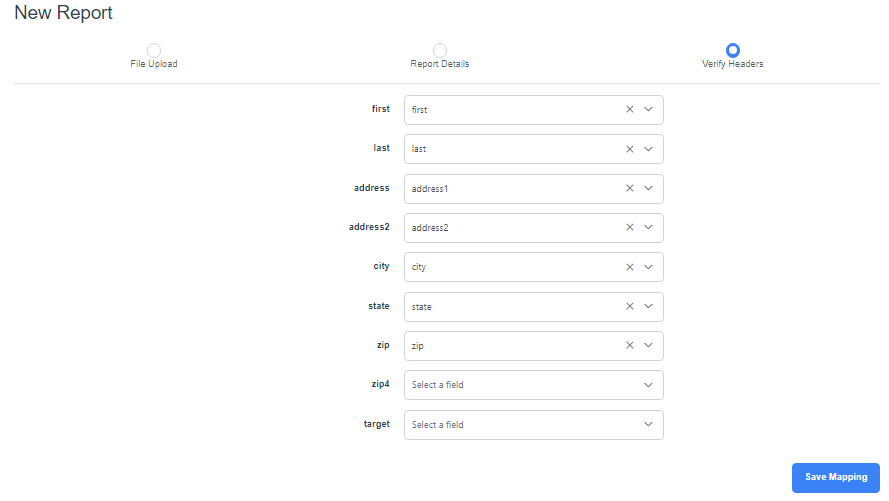
- The data matching will start; watch for a blue bar showing the progress and a green pop-up in the lower right corner to indicate if it has been successful. When complete, click the green "Buy Report" button.
- Select the categories you would like included in your report. (Click on the blue "i" on each to find out more information for each category.) In the example below, the Aspire Basics Bundle is selected, which includes 16 various categories (click on the blue "i" for details). When finished with selection(s), select between the blue "Full Report" button (which includes reports for all sections) or the blue "Buy Report" button (which allows for buying specific reports, and costs will vary based on the selections) .
Allow 3-5 minutes for the analyses to complete.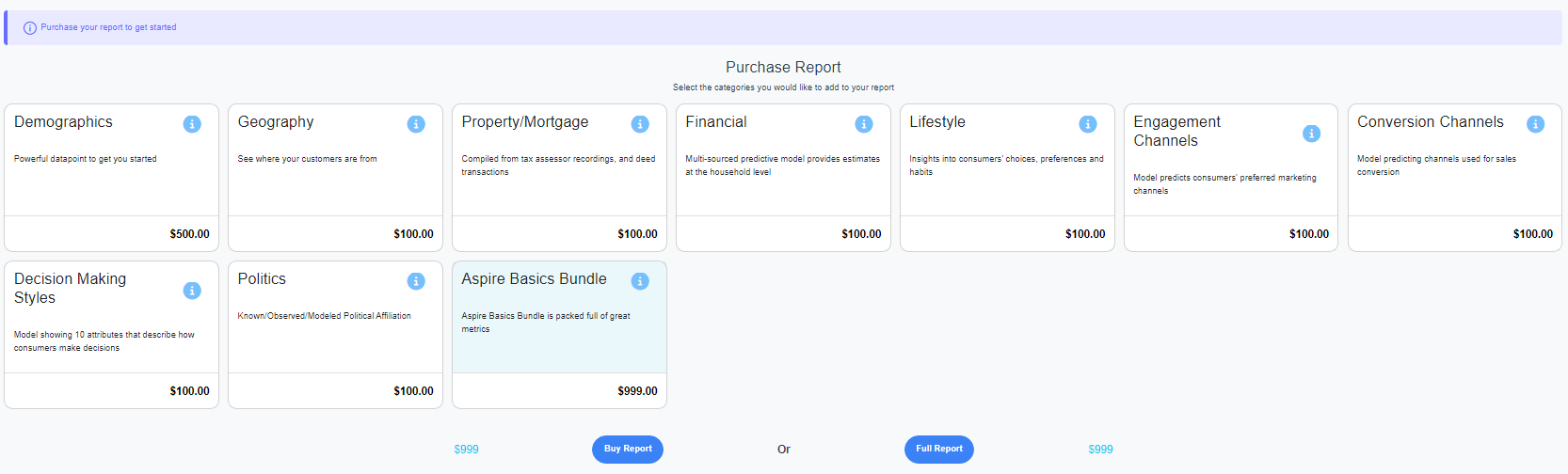
- First, an executive summary is generated by our AI, summarizing key findings of the entire report.
For detailed insights on specific categories, the user can click on the categories from the banner on the left side. In this example, click "Aspire Basics Bundle" to get more detail.
- Clicking on the "Aspire Basics Bundle" (or whichever categories have been purchased) will display bar graphs and a written summary of each category. Scroll down to see all of the available information as there is more than what is visible on your screen.
Additionally, the user can click on a sub-category (e.g. Person: Combined Age) to compare their audience data with that of the market background.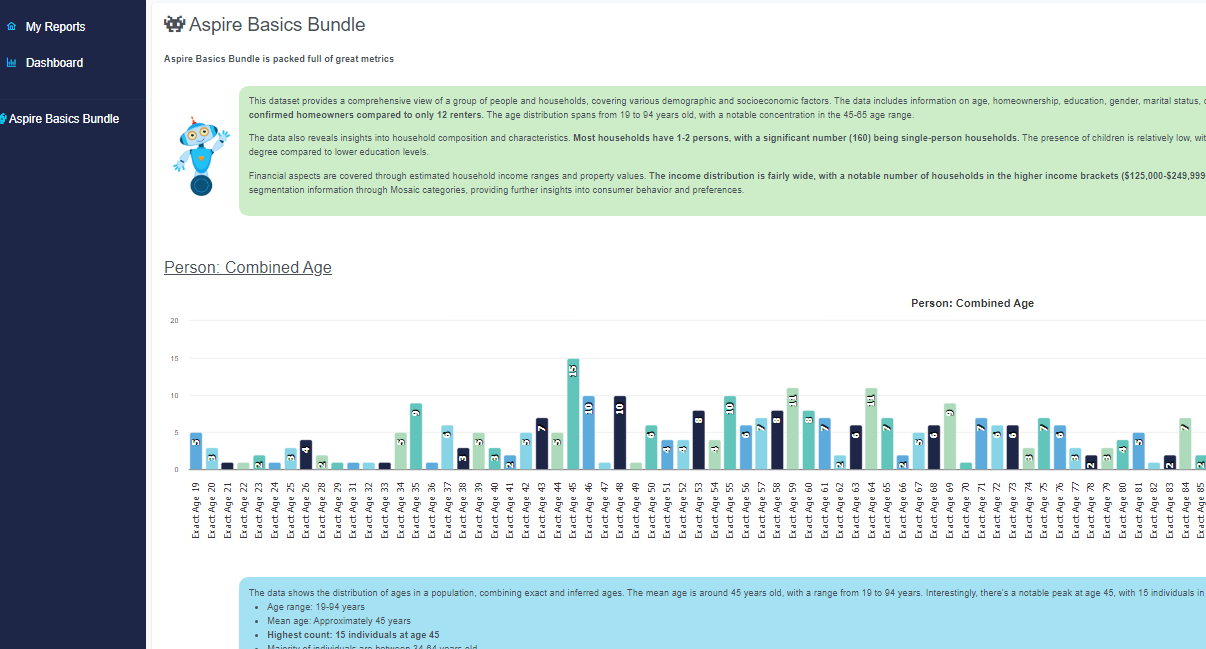
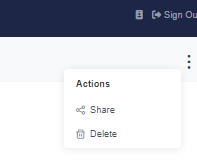
- The report can be shared with an ADN-registered user by clicking the three dots in the upper right corner and selecting "Share".
- Once an Audience Insight has been created, the user will be able to revisit and review it for the entire duration of their ADN subscription.